
Specifications
Product Details
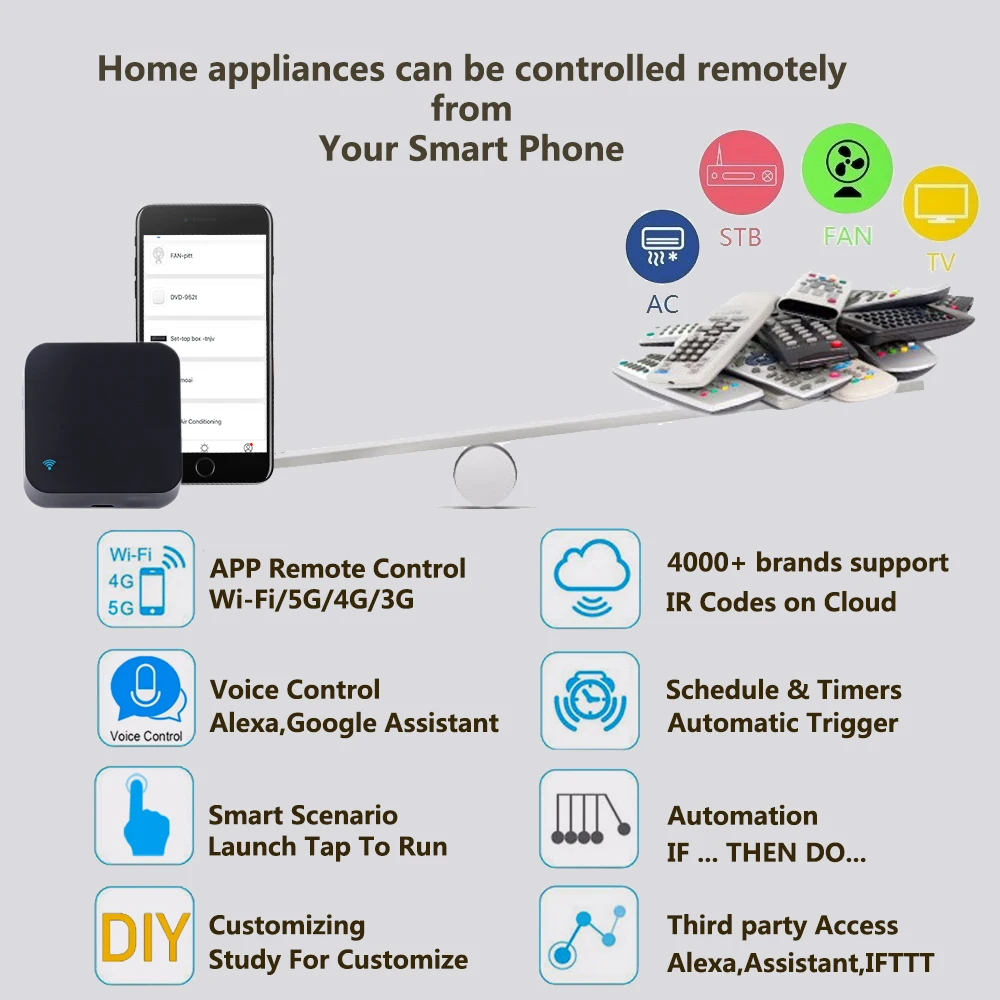
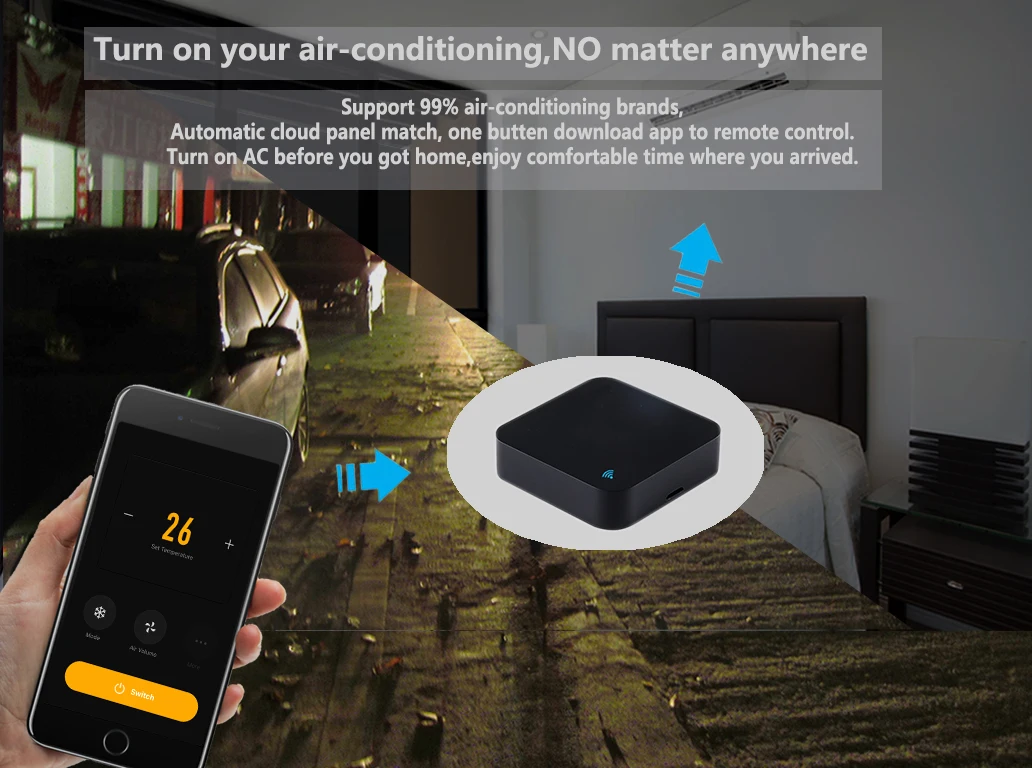
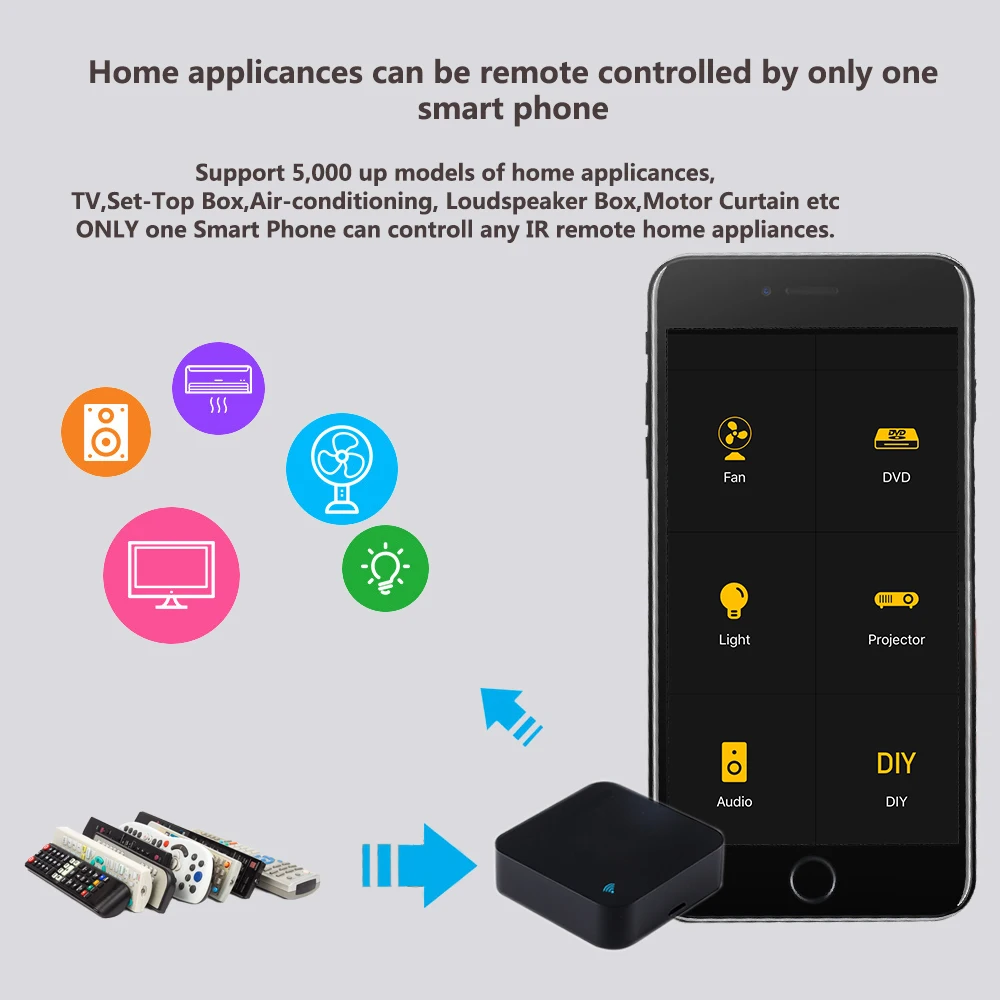
The Tuya Universal Smart IR Remote Control is a compact Wi-Fi infrared controller designed to transform traditional IR-controlled appliances into smart devices. By connecting to the Tuya Smart or Smart Life app, this device enables remote control of TVs, air conditioners, set-top boxes, fans, and other infrared appliances directly from a smartphone. With support for voice assistants and automation features, it provides convenient and centralized control of home entertainment and climate devices.
Key Features
- Universal Infrared Control – Control a wide range of IR-based appliances such as TVs, air conditioners, fans, DVD players, and set-top boxes.
- Extensive IR Code Database – Supports over 4000 brands and 50,000+ IR codes stored in the cloud, continuously updated for improved compatibility.
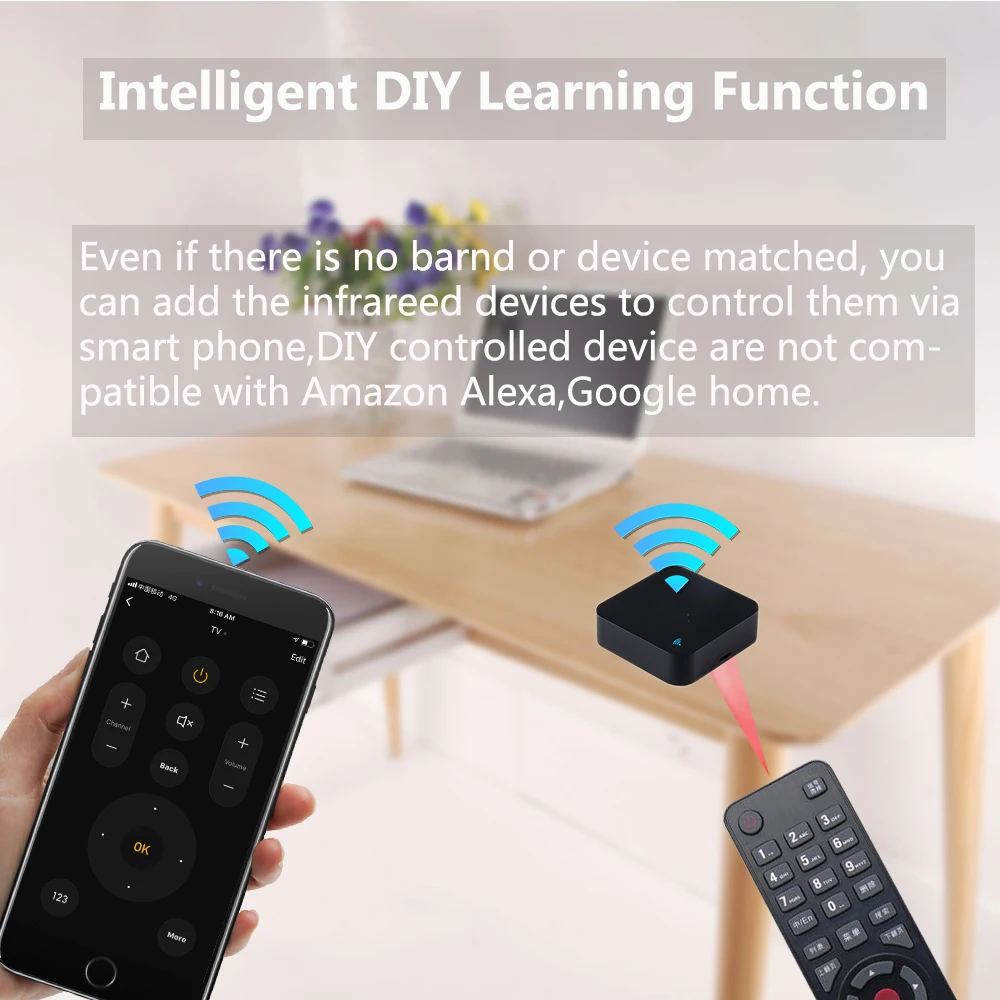
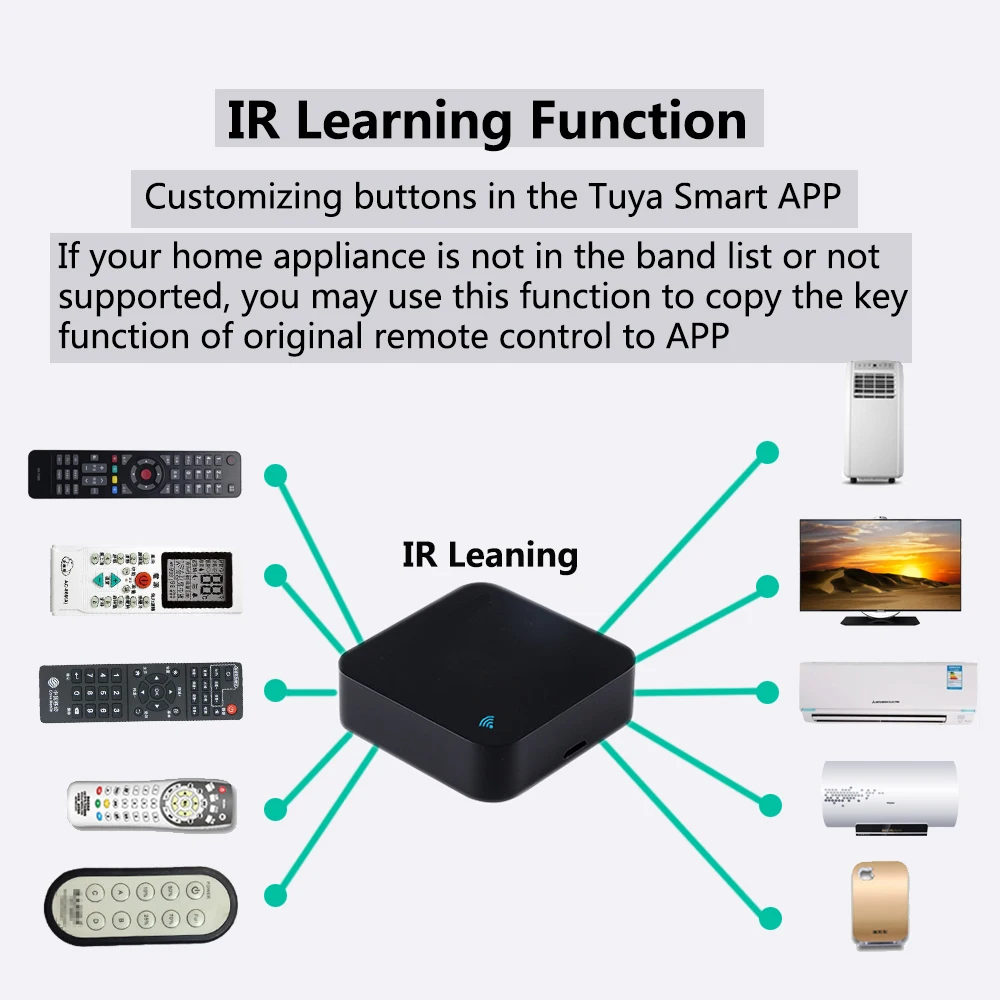
- IR Learning Function – Allows copying commands from existing infrared remote controls when a device is not available in the database.
- Smartphone App Control – Manage appliances remotely using the Tuya Smart or Smart Life app from anywhere with an internet connection.
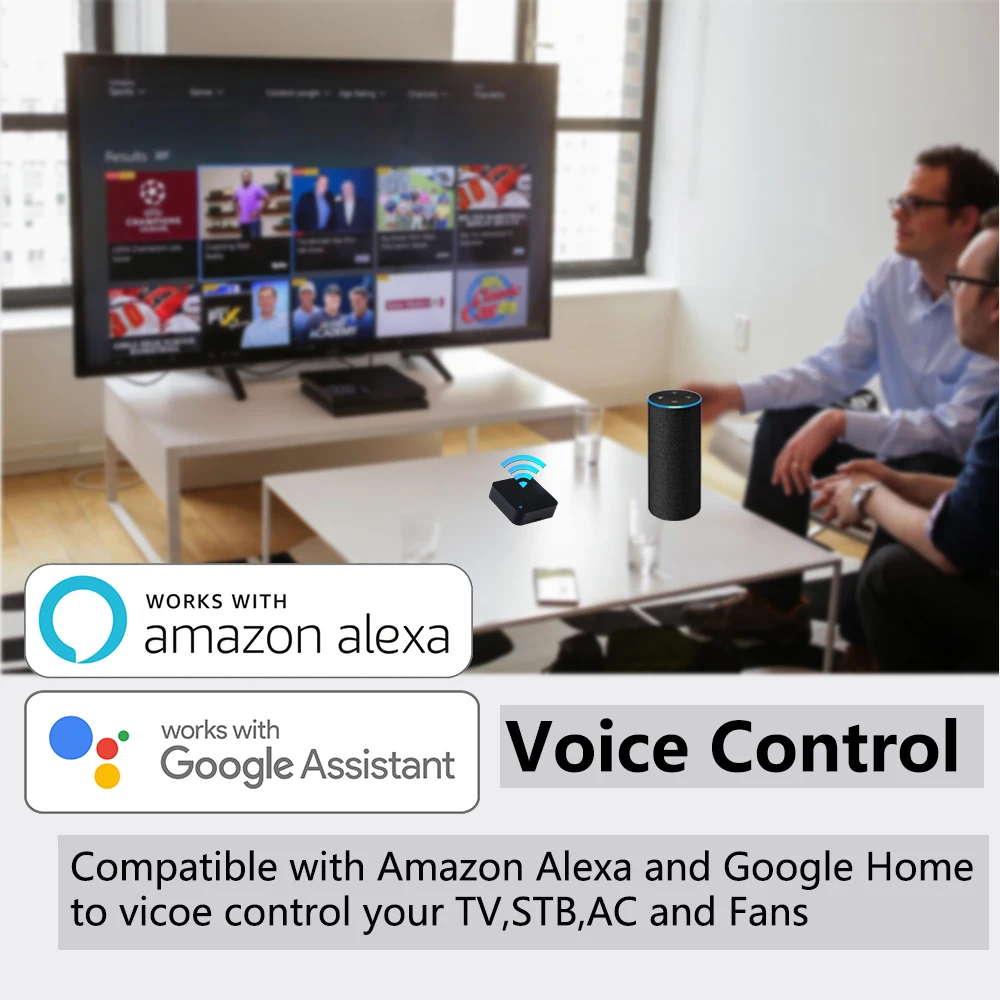
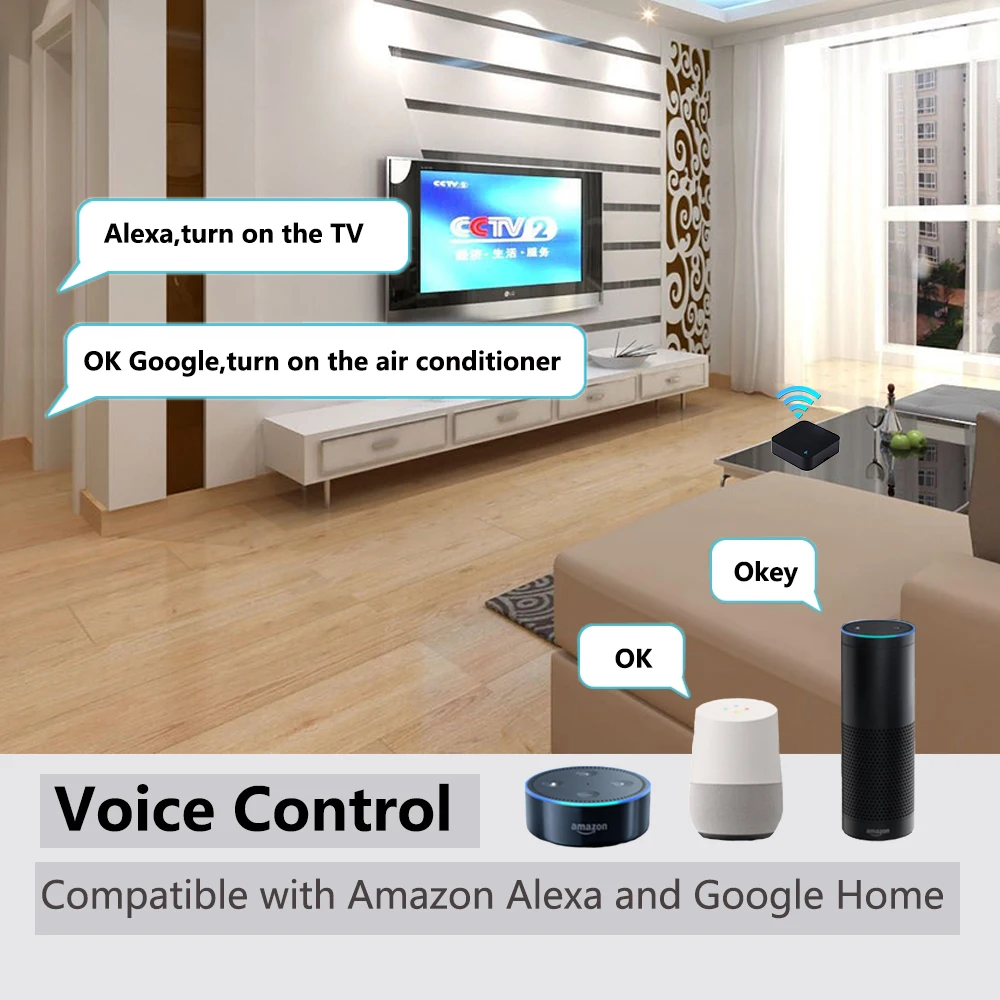
- Voice Assistant Integration – Compatible with Amazon Alexa, Google Assistant, and Siri for convenient voice control.
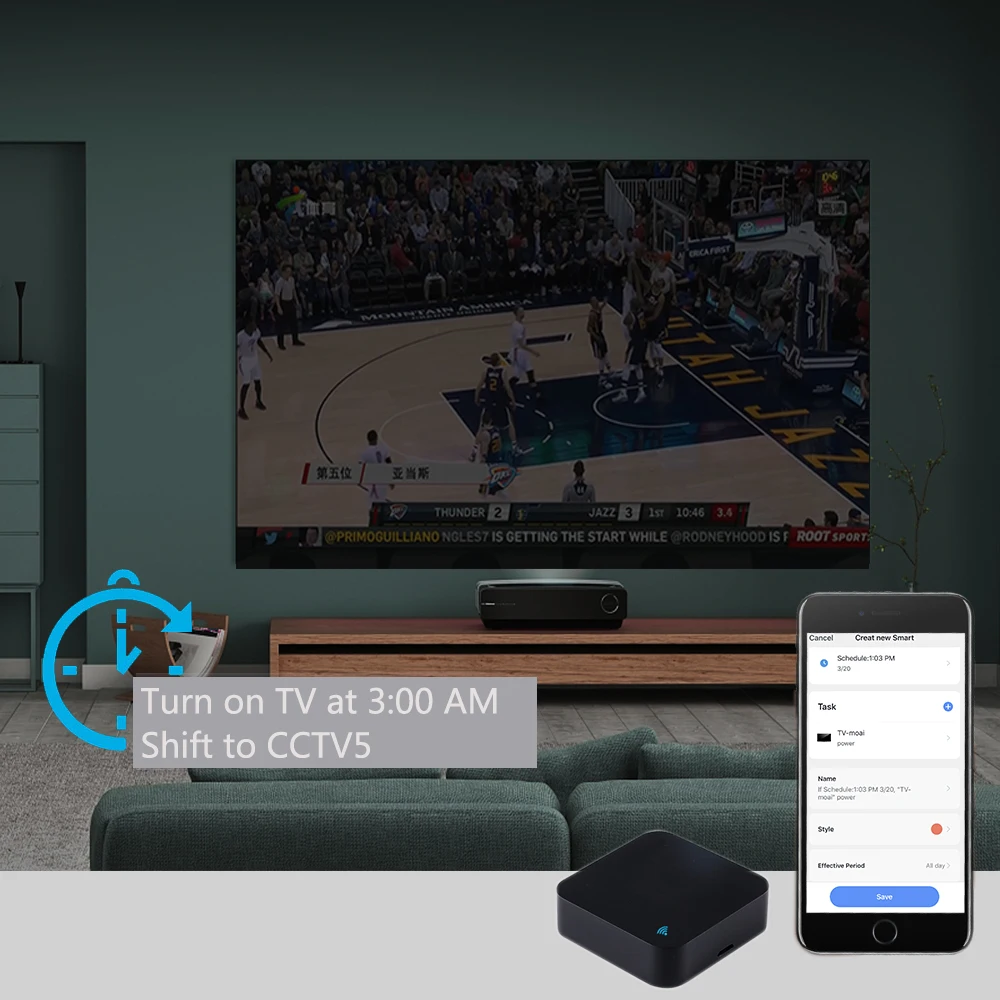
- Smart Automation and Scenes – Create automation rules and scenarios to control multiple devices simultaneously based on schedules, weather, or device status.
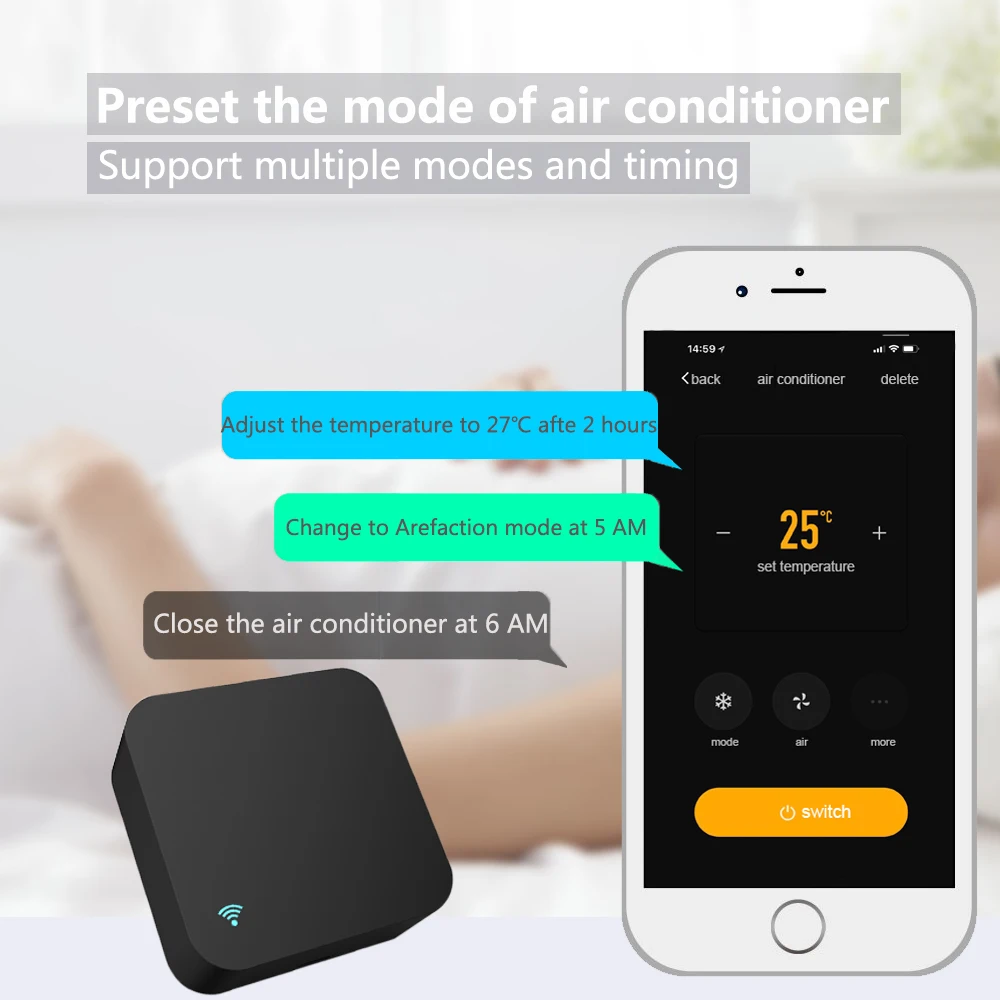
- Timer and Scheduling – Automatically switch appliances on or off at predefined times according to daily routines.
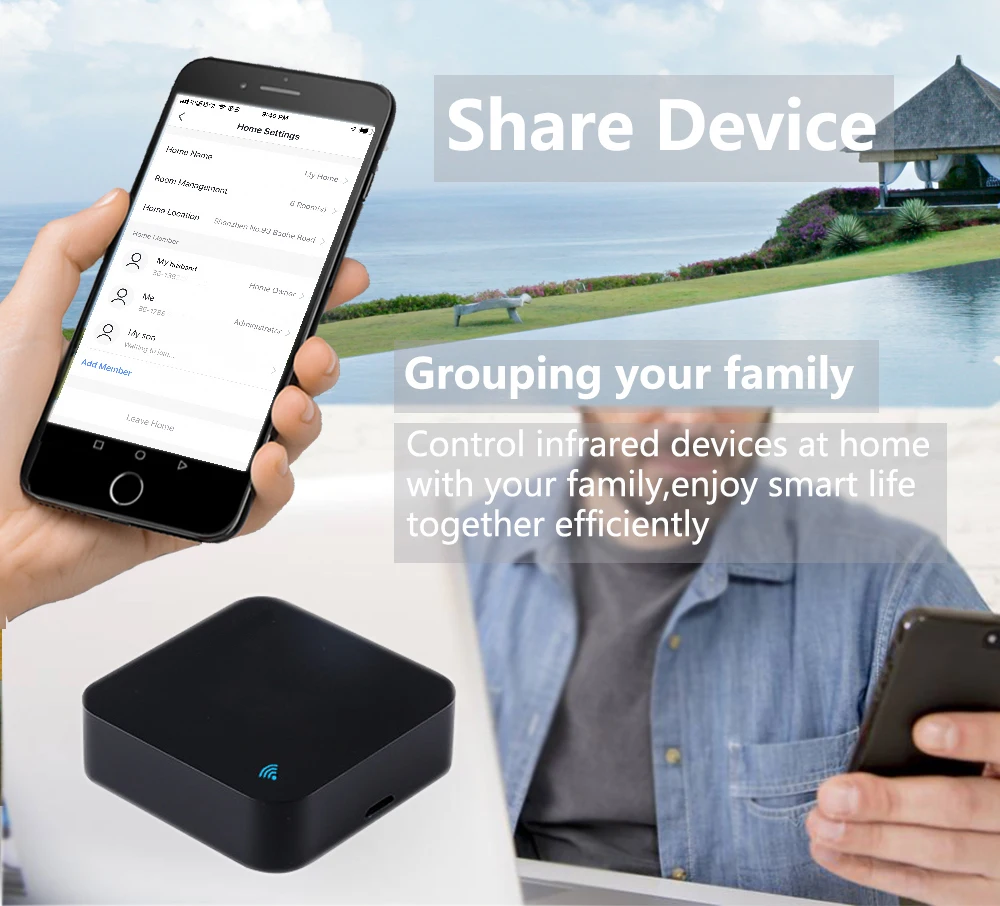
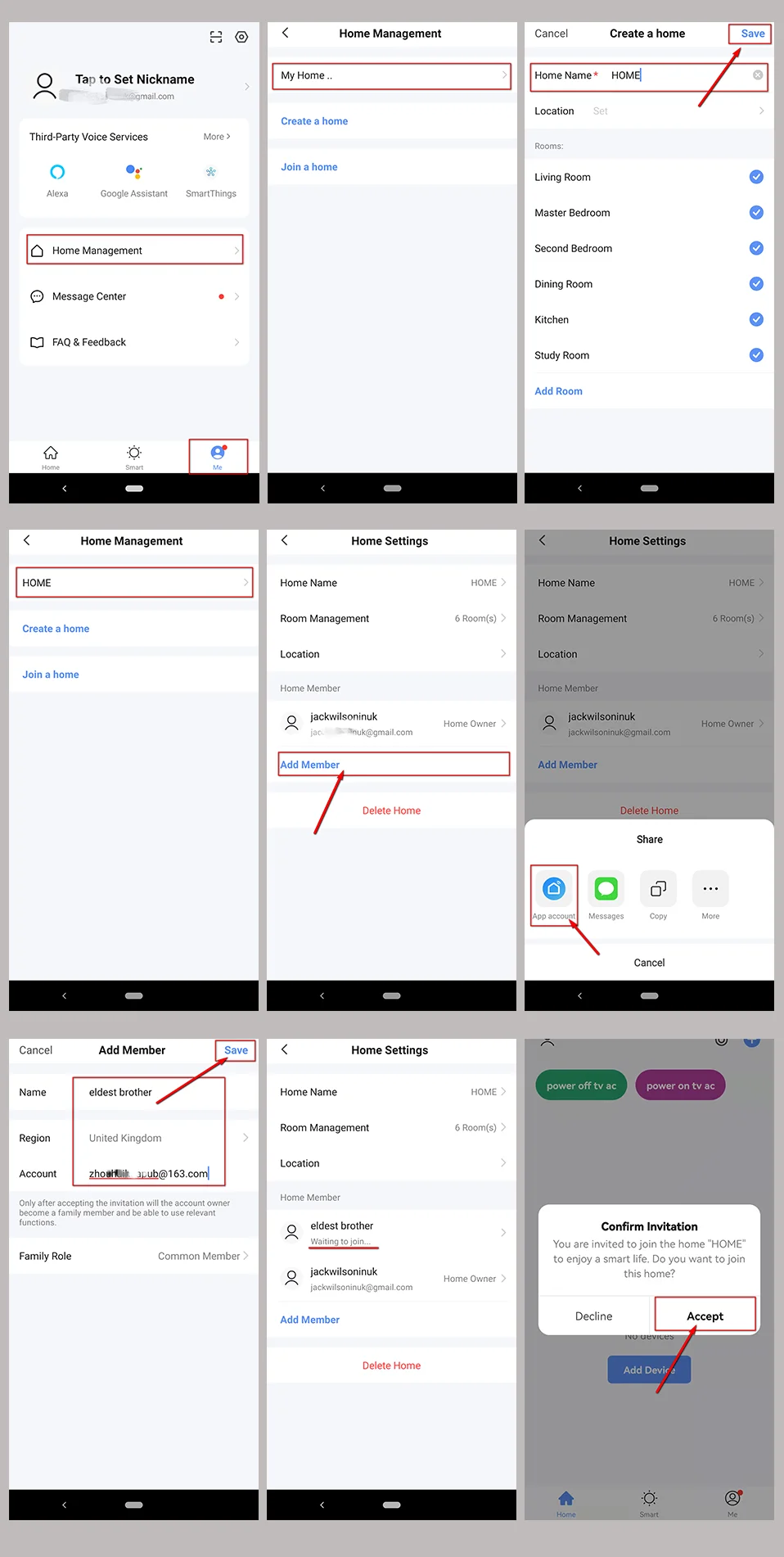
- Family Sharing – Share device access with family members through the Smart Life app.
- 360° IR Transmission – Multi-directional infrared emitter ensures reliable signal coverage within the room.
Technical Specifications
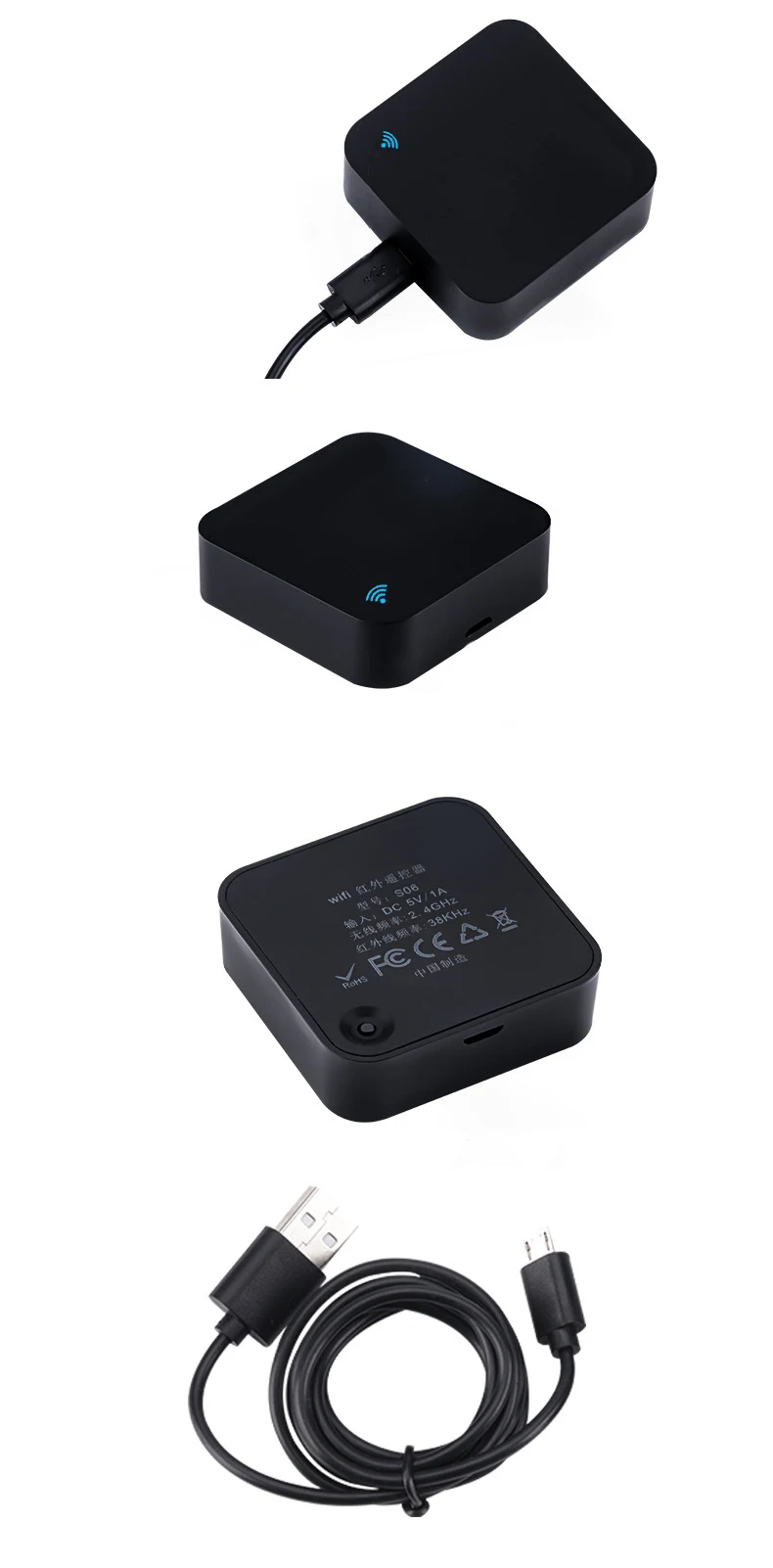
- Input Voltage: DC 5V / 1A (Micro-USB, adapter not included)
- Infrared Frequency: 38 kHz
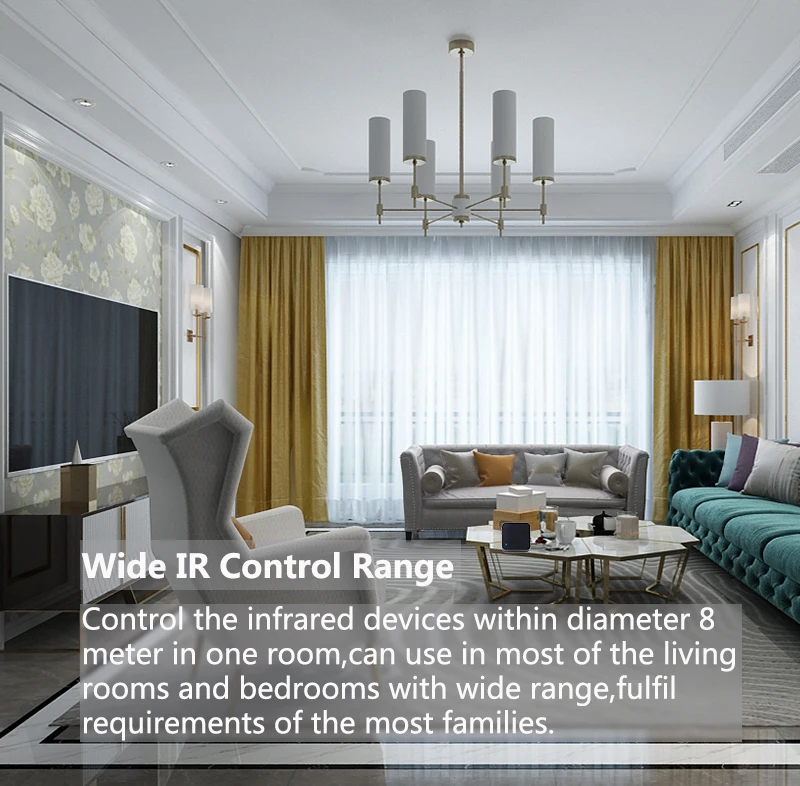
- IR Control Distance: Up to 8 meters
- Wireless Connectivity: Wi-Fi 2.4 GHz
- Mobile App: Tuya Smart / Smart Life
- Material: ABS
- Dimensions: 50 × 50 × 19 mm
Important Notes
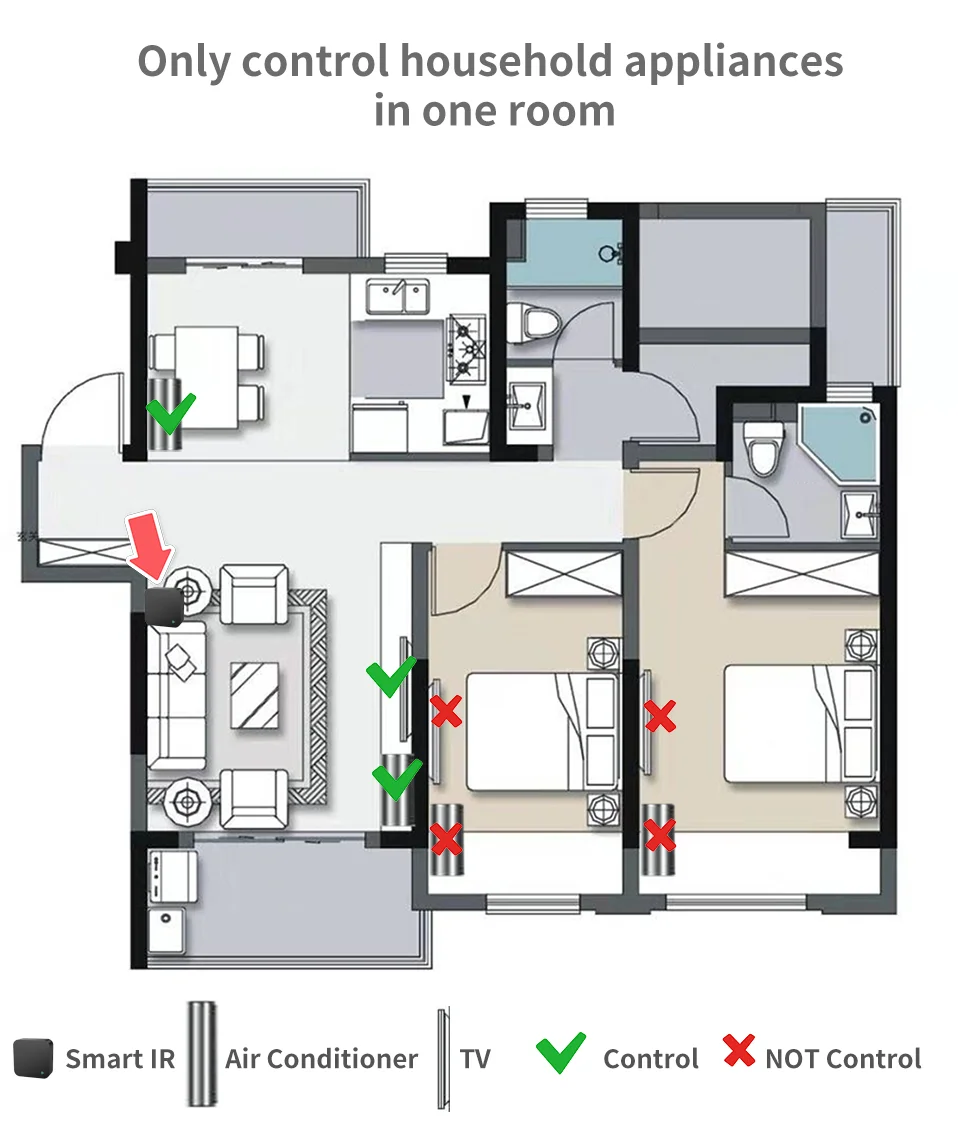
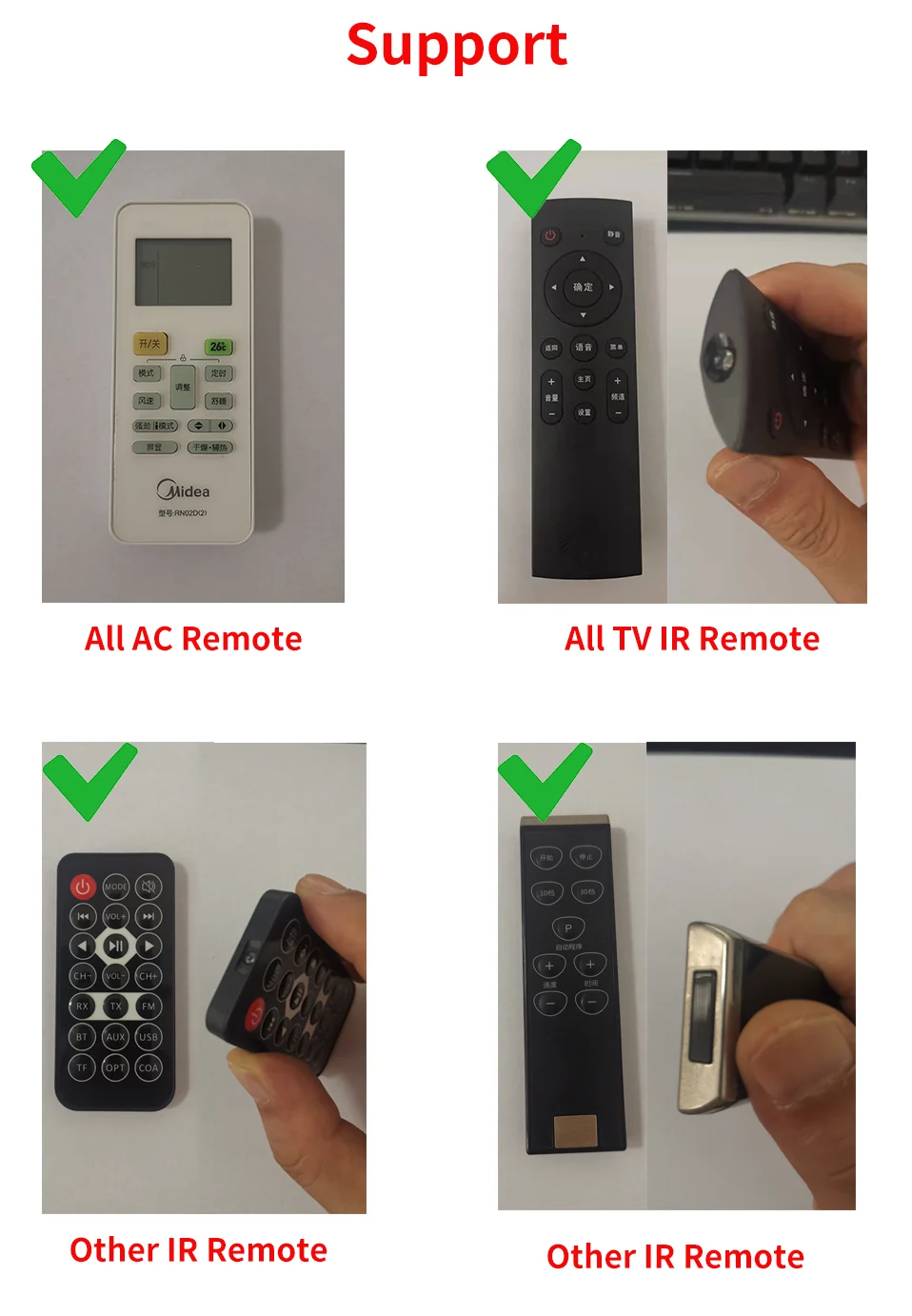
- Designed for infrared (IR) remote controlled appliances only.
- Devices using RF, 2.4G RF, or Bluetooth remotes are not supported.
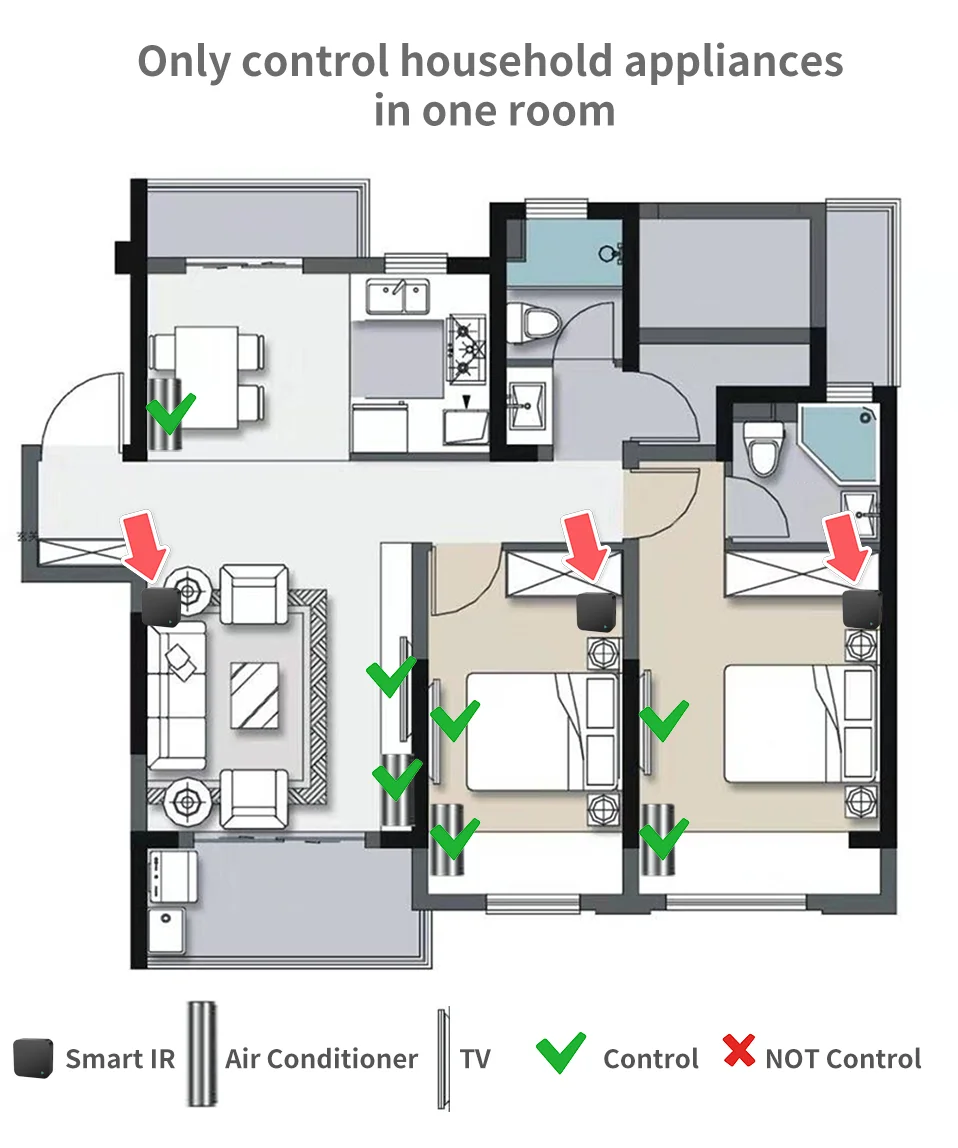
- Infrared signals cannot pass through walls; installation is recommended in the same room as the controlled appliances.
Package Includes
- Universal Smart IR Remote Control ×1
- Micro-USB Power Cable ×1 (adapter not included)
- Adhesive Pad ×1
- User Manual ×1



Real Shots

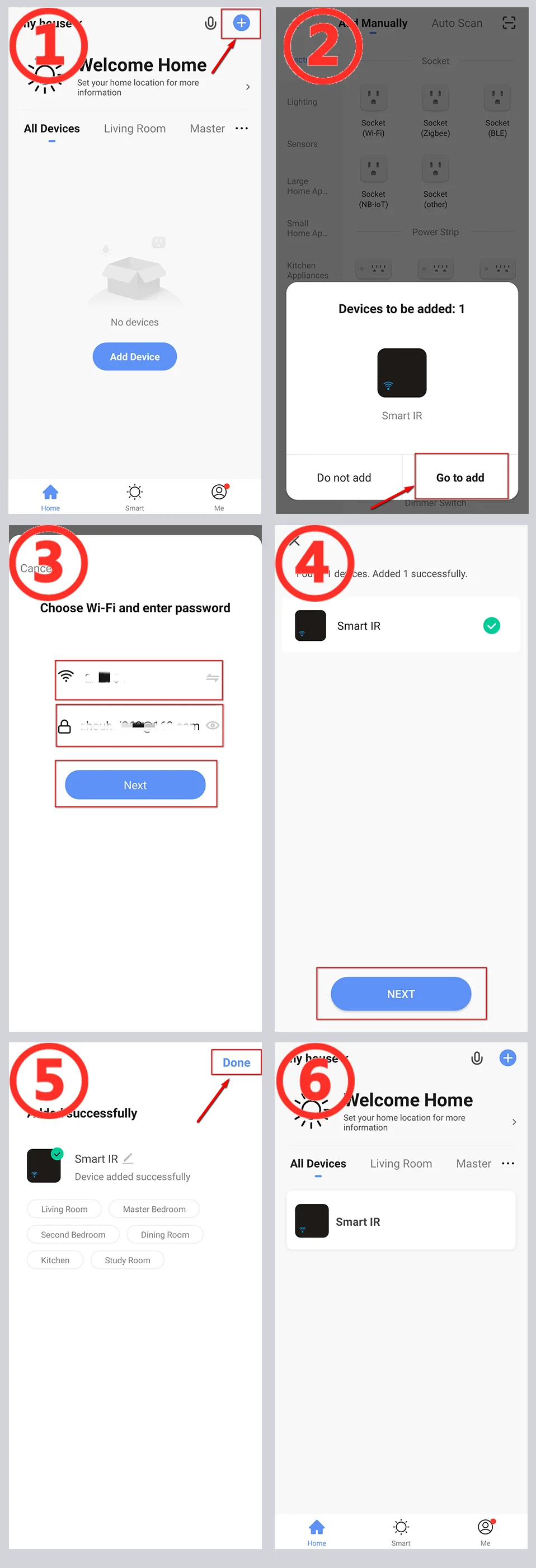
How to Add Device to APP
Using Bluetooth to add devices is very simple.
Give app Bluetooth operation permission, app will automatically find the device to be added
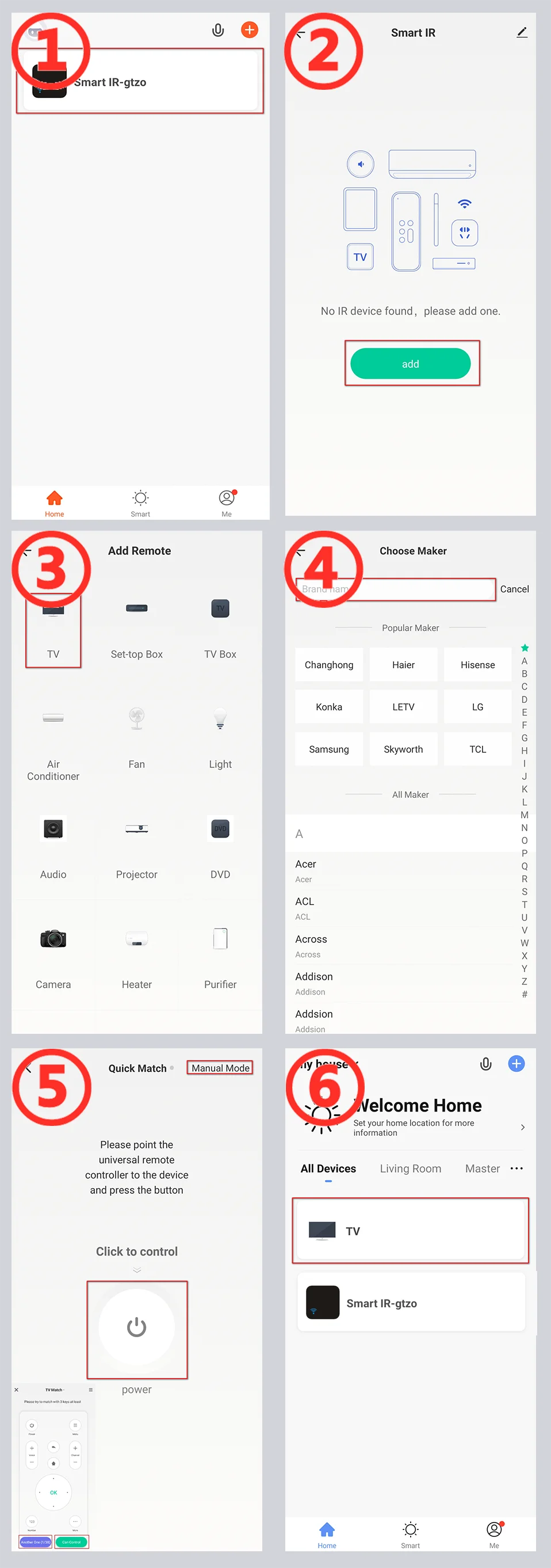
How to Add appliances(Take TV as an example)
FAQ
- What devices can control with WiFi remote control?
You can control TV, Fan, Air conditioner and other IR enabled appliances. - What should I do when I cannot control the devices with this remote control?
Firstly, make sure your mobile device and the WiFi remote control are adjacent and connected to the same network, Assure the WiFi infrared remote control is always power on. - Can I control devices through 2G/3G/4G network?
The WiFi remote control and mobile device are required to share the same WiFi network when adding WiFi remote control, the first time. After device configuration succeed, you can remotely control devices through 2G/3G/4G/5G cellular network. - What should I do when device configuration process has failed?
you can:
Check whether the remote control is powered on or not.- Check whether your mobile device is connected to2.4GHz WiFi network.
- Check your network connectivity, make sure the router is working properly.
- Make sure the WiFi password entered is correct when adding remote control.
- Can it go through walls or be used to control IR devices in upstairs/downstairs rooms?
IR cannot go through walls, so make sure there are no obstacles between IR remote and IR enabled devices. - We have Huawei/Xiaomi set-top box, why is it not connecting?
There are two types of set-top boxes, OTT and IPTV, the most obvious difference is that IPTV supports living streaming while OTT does not. please make sure you have matching TV box before setup. - What should we do when we are unable to use IR remote to control an electric device?
Please check the following:- IR remote network in good condition (click any key on the remote-control panel in the app and see whether the indicator light starts flashing. if it flashes, it indicates to work properly.
- There is no object blocking between IR remote and electric device
- The factory remote control of electric device is IR enabled. (Cover the top of the remote control with hand or any object, then press any keys. if the device does not respond, it is IR based, otherwise, it is Bluetooth or RF based remote control.)
